Use ADAM in QGIS
ADAM publishes its events through a standard OGC API Features service. QGIS reads that standard natively, so you can load earthquakes, tropical storms and floods as live layers without plugins or downloads, filter them on the server, style them, combine them with your own data and open the products from the attribute table.
This guide uses QGIS 4.2 on macOS. QGIS 3.16 or newer shows the same dialogs.
Before you start
- QGIS 3.16 LTR or newer.
- Network access to
https://api.adam.geospatial.wfp.orgover HTTPS. No account or key is needed. - The service URL you will type once:
https://api.adam.geospatial.wfp.org/api
The service exposes one collection per data layer. For the three hazards you will mostly use:
| Hazard | Collection | Geometry | Contents |
|---|---|---|---|
 Earthquakes Earthquakes | adam.adam_eq_events | points | one feature per earthquake, with magnitude, intensity, exposed population and product links |
 Tropical storms Tropical storms | adam.adam_ts_events | points | current position of each storm episode, with wind speed, status, alert level and product links |
adam.adam_ts_tracks | lines | observed and forecast track | |
adam.adam_ts_buffers | polygons | wind zones around the track, labelled by alert level | |
adam.adam_ts_nodes | points | forecast positions with timestamps | |
adam.adam_ts_disturbance_* | same set | developing systems not yet named | |
 Floods Floods | adam.adam_fl_events | points | satellite-observed flood events with area, population and cropland affected |
adam.adam_fl_alerts | points | river flood forecast alerts with basin, trend and peak date | |
adam.adam_fl_glofas_gauges_forecast | points | GLOFAS gauge forecasts | |
adam.adam_fl_alerts_mom_forecast | points | seasonal flood outlooks |
The full catalogue is described in the Collections reference.
Step 1 — Create the connection
- Open Layer ▸ Data Source Manager and select the WFS / OGC API - Features tab.
- Click New under Server Connections.
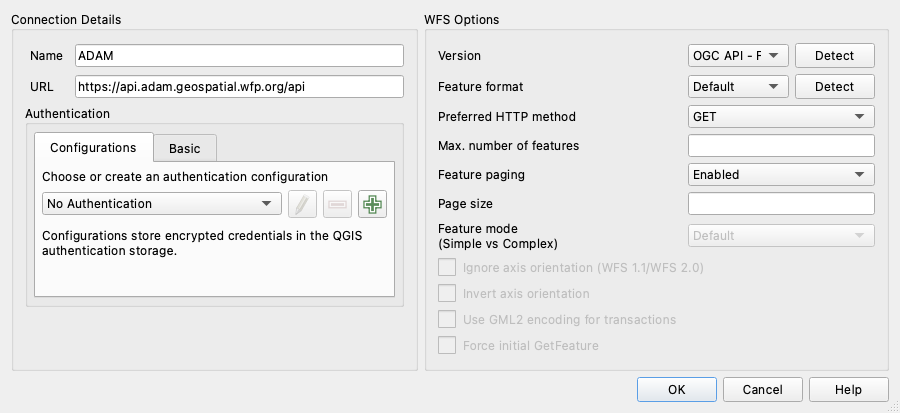
- Fill in the dialog:
- Name:
ADAM - URL:
https://api.adam.geospatial.wfp.org/api - Version:
OGC API - Features - Feature paging:
Enabled(optional; the default trusts the server, which supports paging) - Leave Authentication empty.
- Name:
- Click OK. Test Connection is available if you want to check reachability first.
Step 2 — Browse and add collections
- With
ADAMselected, click Connect. The list fills with the collections above. - Select one or more collections. Hold Cmd (Ctrl on Windows and Linux) for a multiple selection, for example the four storm layers together.
- Decide how much data to fetch with Only request features overlapping the view extent:
- On (default): QGIS downloads only the features inside the current map view and refreshes as you pan and zoom. Keep it on for the earthquake collection, which holds every event since 2016.
- Off: QGIS downloads the whole collection once. Fine for small layers such as current storm tracks, slow for large ones.
- Click Add, then Close.
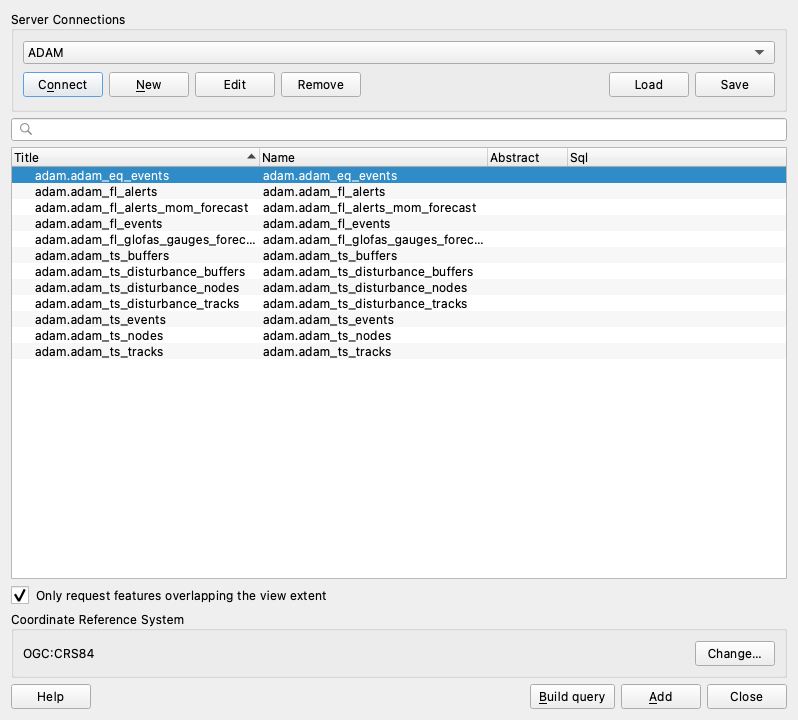
The coordinate reference system is OGC:CRS84, that is WGS 84 with longitude and latitude. QGIS reprojects on the fly, so the layers align with any basemap.
Step 3 — Style and explore
Add the layers in a sensible order: wind buffers at the bottom, tracks above them, event points on top. Then style them from Layer Properties ▸ Symbology:
- Earthquakes: Graduated by
mag, or a single marker sized by magnitude. - Storm buffers: Categorized by
alert_level_label, with 30 to 40 percent opacity. - Storm tracks and events: Categorized by
alert_level(Green, Orange, Red). - Flood alerts: Categorized by
alertorwarning.
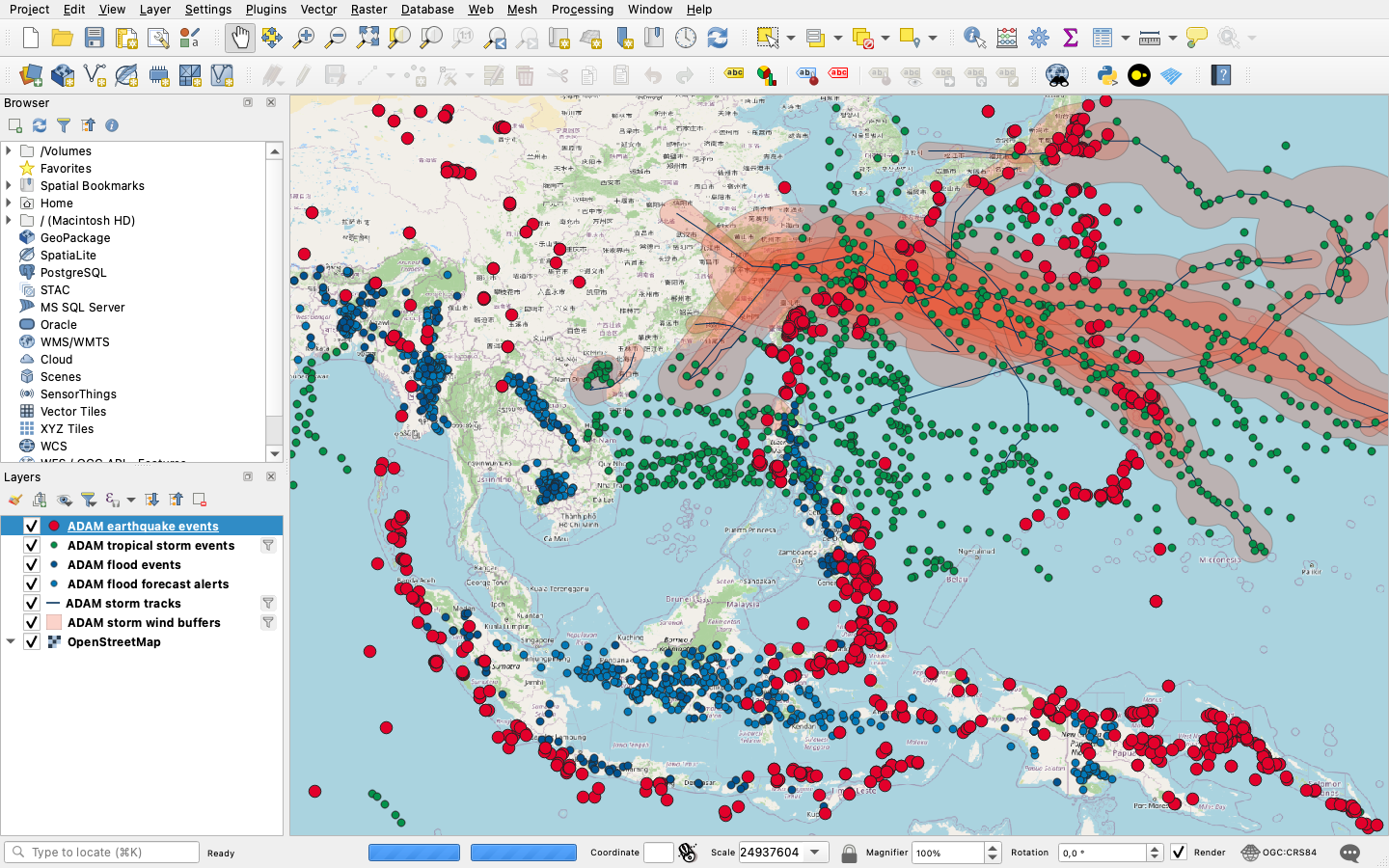
Use the Identify Features tool on any point to read its attributes, including the URLs of the products described in Event dashboards and products.
Step 4 — Filter on the server
Filters are sent to the API, so only matching features are downloaded. Set one before adding a layer with Build query in the Data Source Manager, or later from Layer ▸ Filter… (the Query Builder). For this provider the Query Builder asks for an OGC API - Features filter: QGIS turns it into the API's CQL2 filter and lets the server do the work. Use field names as listed on the left, comparison operators, LIKE, IN, AND, OR and NOT, string values in single quotes (matching is case-sensitive). Test shows how many features match before you apply the filter.
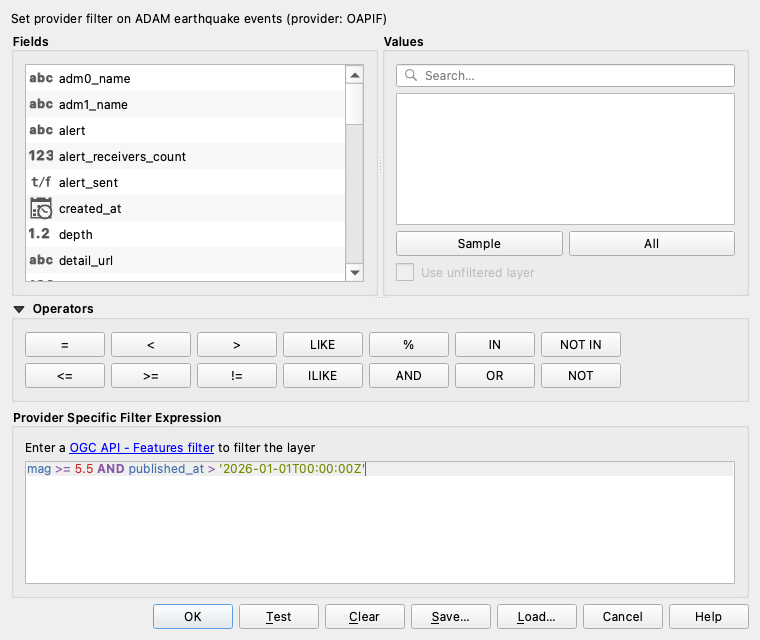
Filters that work well with the ADAM collections:
| Goal | Collection | Filter |
|---|---|---|
| Earthquakes of magnitude 5.5 or more this year | adam_eq_events | mag >= 5.5 AND published_at > '2026-01-01T00:00:00Z' |
| Earthquakes with a dashboard | adam_eq_events | map_created = TRUE |
| Earthquakes in one country | adam_eq_events | iso3 = 'IDN' |
| Earthquakes that reached an alert colour | adam_eq_events | alert IN ('yellow', 'orange', 'red') |
| Storms at hurricane strength since August | adam_ts_events | wind_speed >= 118 AND published_at > '2026-08-01T00:00:00Z' |
| Storms at Orange alert | adam_ts_events | alert_level = 'Orange' |
| One storm, all episodes | adam_ts_events | name LIKE 'KROVANH%' |
| Storms affecting a country | adam_ts_events | countries LIKE '%Philippines%' |
| Recent storm tracks or wind buffers | adam_ts_tracks, adam_ts_buffers | updated_at > '2026-08-01T00:00:00Z' |
| Flood events in one country | adam_fl_events | country = 'Mozambique' |
| Flood alerts in one country | adam_fl_alerts | iso3 = 'MOZ' |
| Flood alerts processed after a date | adam_fl_alerts | date_proc > '20260801' |
Dates
published_at, updated_at, created_at, from_date and to_date are timestamps. Write the value as a full ISO 8601 timestamp ending in Z, for example '2026-08-01T00:00:00Z': QGIS recognises it and sends the API a proper timestamp literal. A date alone ('2026-08-01') or a timestamp without Z is sent as text, the server rejects the request and the layer comes back empty. Flood collections store dates as plain strings, effective as YYYY-MM-DD and date_proc as YYYYMMDD, so there a quoted string is the right form.
Step 5 — Read the attributes and open the products
Open the attribute table (F6) to see the fields. Each collection carries the figures shown in the Live Map popup plus the URLs of its products.
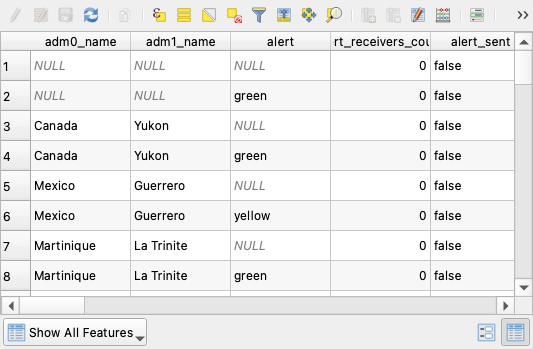
Fields worth knowing:
| Field | Meaning |
|---|---|
uid, source_id | ADAM identifier and USGS event id |
mag, mag_type, depth, mmi | magnitude, magnitude type, depth in km, maximum Modified Mercalli Intensity |
alert | GDACS-style alert colour once assessed |
place, adm0_name, adm1_name, iso3 | location |
pop_est_buff_1..3 | people within 15, 30 and 50 km of the epicentre |
published_at, alert_sent | publication time, whether an email alert went out |
dashboard_url, shakemap_url, population_table_url, population_csv_url, shapefile_url | products |
| Field | Meaning |
|---|---|
name, event_id, episode_id, uid | storm name with year suffix, GDACS event and episode ids |
storm_status, current_storm_status | classification, from tropical depression to category 5 |
wind_speed, max_storm_surge | current wind speed in km/h, storm surge when available |
alert_level | Green, Orange or Red |
countries, iso3 | affected countries |
pop_est_buff_1..3 | people inside the 60, 90 and 120 km/h wind zones |
from_date, to_date, published_at | episode time span, publication time |
wind_map_url, rainfall_map_url, population_table_url, population_csv_url, shapefile_url | products |
| Field | Meaning |
|---|---|
eventid / alertid | identifier, with ISO3 and date |
country, iso3, adm1_name, riverbasin | location |
effective, date_proc | observation date, processing date |
flood_area, fl_popn, fl_croplnd | flooded area in hectares, people and cropland hectares affected (events) |
trend, dateofpeak, warning, alert | river trend, forecast day of peak, warning and alert levels (alerts) |
prod_url | PDF report or bulletin |
To open a product with one click, add an action to the layer: Layer Properties ▸ Actions ▸ Add, type Open URL, action text [% "dashboard_url" %] (or the URL field of that collection). The action then appears in the attribute table and in the Identify results.
Going further
-
Vector tiles for speed. Every collection is also served as vector tiles, which render instantly at any zoom. Use them for display when the full history of a large collection is on screen, and keep OGC API Features for analysis and attributes. Layer ▸ Data Source Manager ▸ Vector Tile ▸ New ▸ New Generic Connection, then enter the tile URL and, optionally, the style URL of the collection:
https://api.adam.geospatial.wfp.org/api/collections/adam.adam_eq_events/tiles/WebMercatorQuad/{z}/{x}/{y}
https://api.adam.geospatial.wfp.org/api/collections/adam.adam_eq_events/tiles/WebMercatorQuad/style.json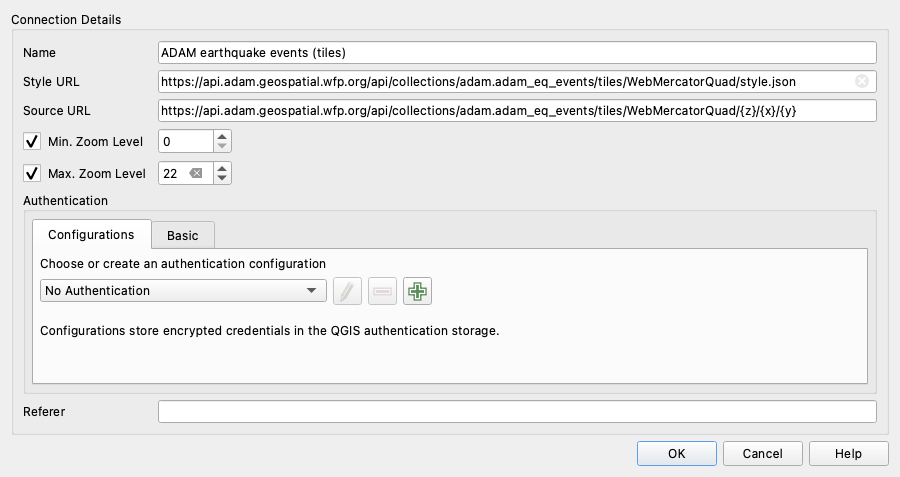
-
Snapshot for offline work. Right-click a layer ▸ Export ▸ Save Features As… and write a GeoPackage. The live layer keeps updating; the export does not.
- Share the connection. Save in the Data Source Manager writes the connection to an XML file that colleagues can Load.
- Stay current. Layers are live: refresh the map (F5) to pick up new events. Earthquake features are enriched a few minutes after detection, so a freshly detected event may show empty product fields on first load.
Next steps
- Live Map for the same events in the browser
- Event dashboards and products to interpret the URLs you open
- Query Features and the API reference for scripted access to the same service